
Knowledge base
October 21, 2026
Microsoft Purview in Plain Language: What You Already Have in Business Premium
The blog post about your 2027 IT budget discussed what you’re paying for twice. This blog post is about the opposite: what you’re already paying for but not using.
Microsoft 365 Business Premium includes components of Microsoft Purview. This allows you to apply a label to a document, and an employee receives a warning if they send sensitive data externally via email, OneDrive, or SharePoint. If you have Business Premium, you’ve already paid for it.
In the environments we’ve reviewed, it’s rarely enabled.
What is Purview?
Purview is the umbrella term for the components of Microsoft 365 that identify, label, and protect sensitive data. It sounds like a major project. For most small and medium-sized businesses, it boils down to two things: file labels and alerts for emails and shared files.
Labels that travel with the file
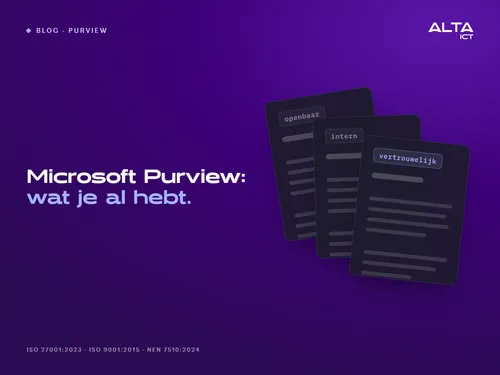
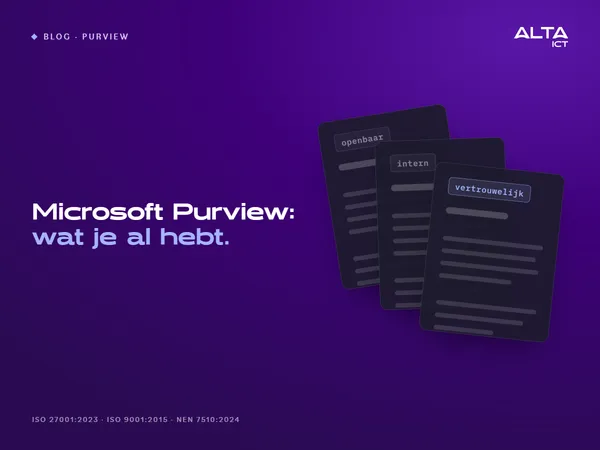
A sensitivity label is a label applied to a document or email: public, internal, confidential. You choose the labels yourself. In Business Premium, this feature works in Outlook, Word, Excel, and PowerPoint.
The label travels with the file, even when it is downloaded or forwarded. And it can determine what can be done with the file. A confidential document can be watermarked or encrypted so that only colleagues can open it.
Start with three labels. No one can remember more than that, and a label that no one uses doesn’t protect anything.
Warnings Regarding Email and Files
Data Loss Prevention, or DLP for short, recognizes patterns in emails and in files in OneDrive and SharePoint. For example, Microsoft recognizes the Dutch citizen service number as a distinct type of sensitive data, including the check digit. If an Excel file sent by an employee to an external address contains a column with citizen service numbers, Outlook can detect this before the email is sent.
You decide what happens next. The employee either receives a notification, is allowed to send the email after providing a reason, or the email is blocked. This feature is also included in Business Premium. It’s just not enabled by default.
Where the License Ends
Business Premium protects email and files in SharePoint and OneDrive. This also includes files you share in Teams, since they are stored in SharePoint or OneDrive. The chat message itself is not covered: according to Microsoft, DLP for Teams chat requires an E5 license. The same applies to DLP on the device itself.
That’s not just a minor detail. A lot of sensitive data is no longer sent via email. It’s sent in chat messages: a customer list pasted into a group chat, a social security number in a chat with an external partner. And it ends up in places Microsoft doesn’t even see, such as an AI chat in the browser. That’s what the next blog post is about.
Look first, then block
If you set a DLP rule to “block” right away, the next morning you’ll have a phone that won’t stop ringing. Payroll can no longer send out payments, the quote gets stuck, and after a week, someone turns the rule off.
That’s why you start by observing. The rule first monitors the situation and issues warnings without blocking anything. You’ll see which alerts were justified and which weren’t. Then you make adjustments. Only when the alerts are accurate will the rule start blocking. It’s a slower process, but the rule remains active.
One thing you can do in ten minutes
Know what you’re paying for. The Tenant Check requires an administrator account and does not count PIM-eligible administrators. However, in just two minutes, it shows you which licenses you have and which paid licenses have no users assigned to them, along with your MFA coverage and your administrator accounts. It does not store any data from your tenant.
How ALTA-ICT Sets It Up
We start with a conversation, not with a predefined setup: What data is sensitive for you, and where does it go? Then we set up three labels and a handful of DLP rules. These rules initially monitor the system and issue warnings. We make adjustments and roll them out step by step. Your employees will receive a brief explanation so that the first alert doesn’t come as a surprise.
It’s not a new license, and it’s not a major project. It’s about configuring what you already have in a way that works. To learn how to check what else is in your tenant, read the blog post about the inner workings of Microsoft 365. We operate in accordance with ISO 27001:2023, ISO 9001:2015, and NEN 7510:2024.
Frequently Asked Questions
Do I need an additional license?
Not for labels and DLP on email and files if you have Business Premium. But for DLP in Teams chat and on the device, yes: Microsoft requires E5 for that.
Do employees apply the labels themselves?
In Business Premium, yes. The employee selects the label when saving or sending. Automatic labeling requires a more expensive license. That’s why you start with three clear names and a brief explanation.
What if a rule blocks something by mistake?
That’s why you start by monitoring and issuing warnings. If you notice that a rule is triggering too often, you adjust it before it blocks anything.
Does this work for passwords, too?
No. For shared passwords and passkeys, use a password manager; see the blog post about password managers.
Conclusion
The cheapest security is the security you’re already paying for. With Business Premium, you already have file labels and alerts for email and shared files. What’s missing is someone to turn them on—in the right order.
Would you like to know what’s included in your license and what’s still pending? Schedule a meeting with ALTA-ICT.
Want to know more?
Related
blogs
Tech Updates: Microsoft 365, Azure, Cybersecurity & AI – Wekelijks in je Mailbox.